
Best Graphics Cards for VR in 2026: Picks & Buying Guide
Updated October 20, 2026 · Desktop PC VR buying guide
The best graphics card for VR depends on the headset, the games, and the connection you use. For a new build, our starting shortlist is the GeForce RTX 5070 Ti 16GB and Radeon RX 9070 XT 16GB. Compare the actual prices and your headset’s support before choosing. The RTX 5080 is a premium option for more demanding plans, while the RTX 5090 belongs on a specialist shopping list.
A GPU name alone cannot promise a smooth headset experience. This guide explains which cards to consider, what their specifications mean, and the compatibility checks that should come before a purchase. If you are still choosing a headset, start with our VR headset buying guide.

How these picks were selected: This is a research-based buying guide using official GPU specifications and headset requirements. The recommendations are PoGamer’s editorial judgments. PoGamer has not performed comparative VR benchmark testing for this guide.
Affiliate disclosure: Amazon links below are affiliate links. As an Amazon Associate, I earn from qualifying purchases. See our affiliate disclosure.
Quick comparison: six desktop GPUs to consider
| Graphics card | VRAM | Reference GPU power / system PSU | Best reason to shortlist it |
|---|---|---|---|
| RTX 5070 Ti | 16GB GDDR7 | 300W / 750W | Starting point for a flexible new PC VR build |
| Radeon RX 9070 XT | 16GB GDDR6 | 304W / 750W | AMD alternative to compare at the actual checkout price |
| RTX 5080 | 16GB GDDR7 | 360W / 850W | Premium candidate for demanding games and headsets |
| RTX 5070 | 12GB GDDR7 | 250W / 650W | Alternative when its price gap makes sense |
| RTX 5060 Ti 16GB | 16GB GDDR7 | 180W / 600W | Lower-power entry point with settings compromises |
| RTX 5090 | 32GB GDDR7 | 575W / 1000W | Specialist builds where memory capacity and budget justify it |
Power figures are NVIDIA or AMD reference specifications, not a measurement of your whole PC. The PSU number is the manufacturer’s system recommendation for its reference configuration. Partner-card power limits, connectors, cooling, and PSU guidance can differ. Check the exact model you are buying. Prices and stock change, so the links open current search results rather than a fixed-price offer.
- Read the GPU picks
- Check your headset connection
- Understand frame times and VRAM
- Check the rest of your PC
- Read the FAQs
The best graphics cards for VR: our buying shortlist
1. GeForce RTX 5070 Ti: our starting point for a new build
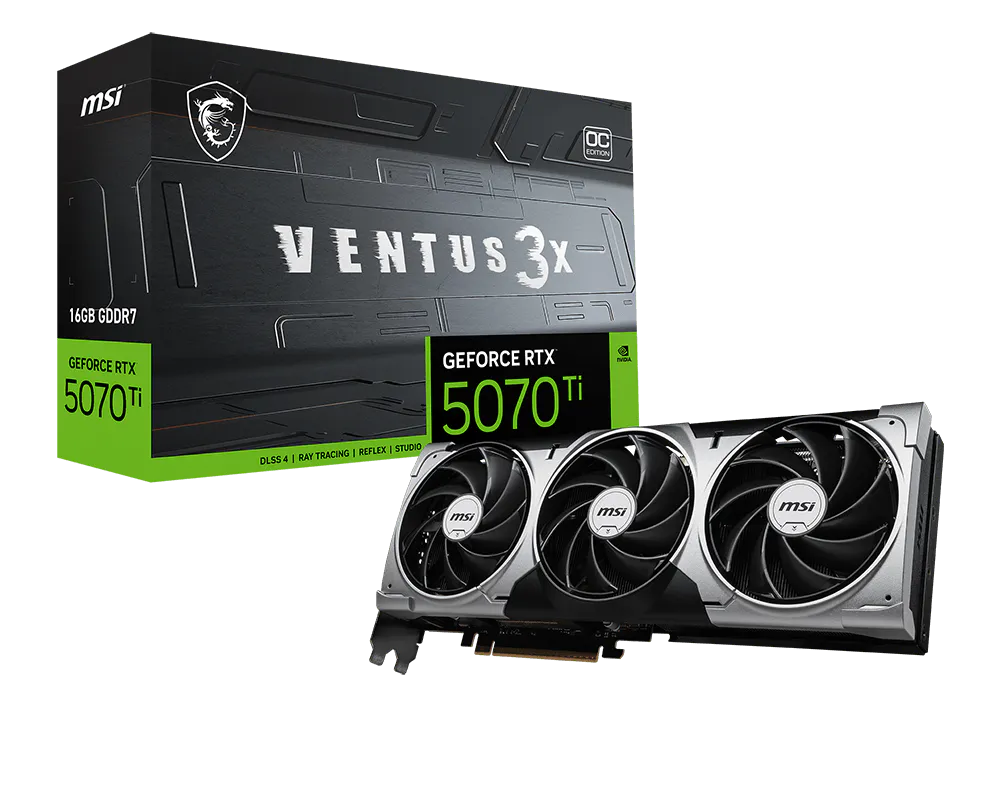
Start here if you want a modern desktop GPU with 16GB of memory and room to explore different PC VR workloads. NVIDIA lists the RTX 5070 Ti with 300W reference graphics power and a 750W system-PSU recommendation. Its appeal is the overall hardware package; it is not a guarantee of maximum settings in every headset.
Buy it when: the price fits your build and headset-specific evidence supports your target games. Compare the RX 9070 XT before paying a large premium. For flight simulators or unusually high render resolutions, examine the exact settings in any benchmark you use.
Check GeForce RTX 5070 Ti 16GB prices on Amazon
2. Radeon RX 9070 XT: the AMD alternative worth comparing
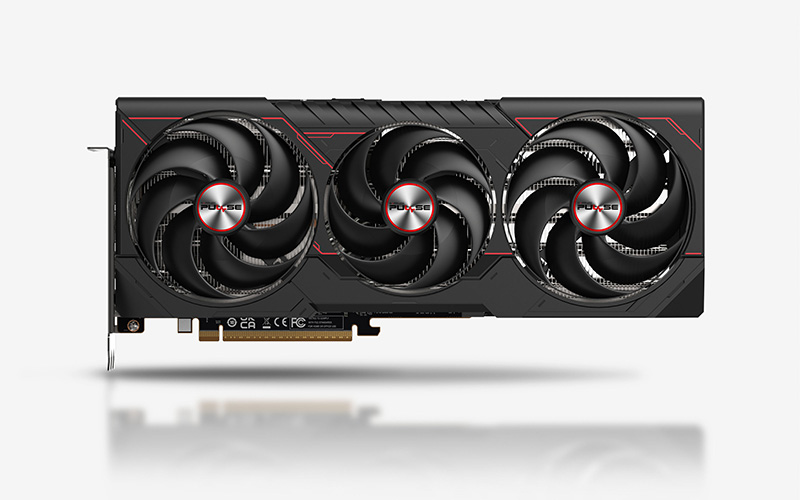
The RX 9070 XT combines 16GB GDDR6 with AMD’s published 304W board-power figure and 750W minimum PSU recommendation. AMD’s product specification also lists hardware AV1 encoding. Codec availability in a particular streaming app still depends on that app and the headset.
Buy it when: its actual price is attractive against the RTX 5070 Ti and the applications you use support it. Meta currently includes the RX 9070 XT on its Horizon Link compatibility list. Apply the same driver, connection, and game-specific checks you would use for an NVIDIA card.
Check Radeon RX 9070 XT 16GB prices on Amazon
3. GeForce RTX 5080: a premium candidate for demanding PC VR
The RTX 5080 has 16GB GDDR7, 360W reference graphics power, and an 850W system-PSU recommendation. Check NVIDIA’s specifications alongside the dimensions and power requirements of the retail model you select.
Buy it when: you are deliberately budgeting for demanding simulators, higher render resolutions, or a premium headset. Keep the whole system balanced. An expensive GPU cannot remove a processor limitation, fix a poor wireless link, or ensure that a game’s VR mode supports a particular graphics feature.
Check GeForce RTX 5080 16GB prices on Amazon
4. GeForce RTX 5070: consider the price gap carefully
The RTX 5070 offers 12GB GDDR7, with NVIDIA listing 250W graphics power and a 650W system-PSU recommendation. It is a useful alternative to evaluate when moving up to a 16GB card would significantly stretch the budget.
Buy it when: your games, headset, and planned settings suit it and the savings are meaningful. Allow for resolution and texture adjustments in demanding titles. Compare the complete card, rather than treating memory capacity as a stand-alone performance ranking.
Check GeForce RTX 5070 12GB prices on Amazon
5. GeForce RTX 5060 Ti 16GB: an entry point with realistic expectations
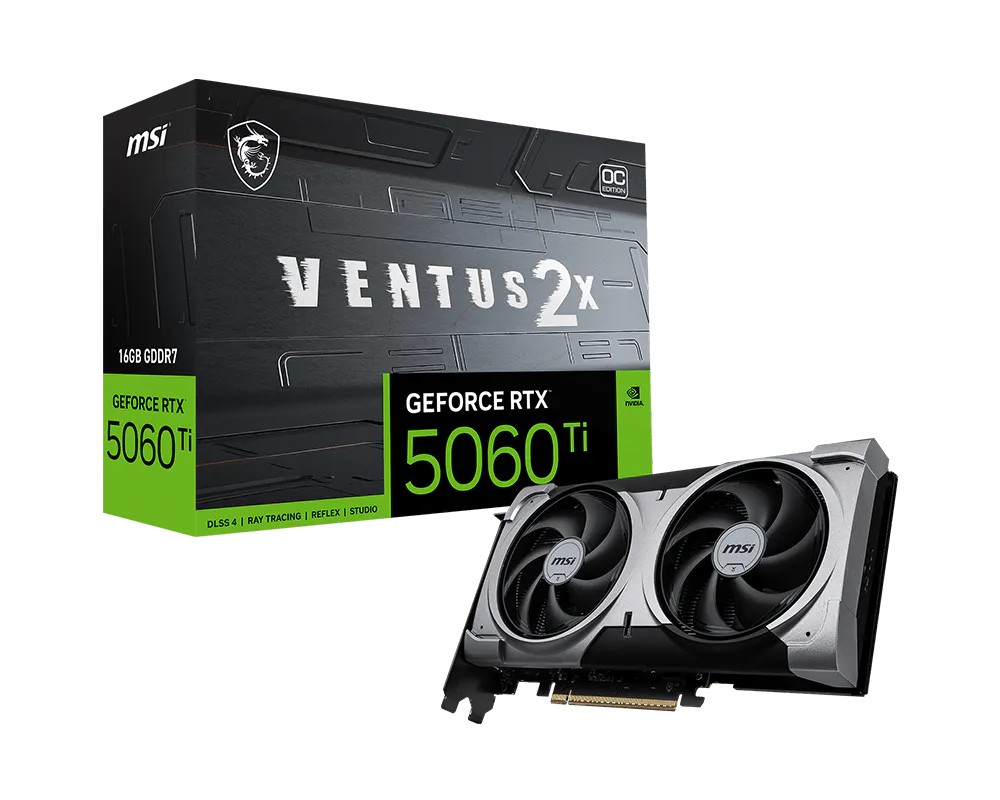
The 16GB RTX 5060 Ti is the lower-power option in this shortlist. NVIDIA’s specification gives 180W reference graphics power and a 600W system-PSU recommendation. The family also includes an 8GB version, so check the retailer’s memory-capacity field before ordering.
Buy it when: you prioritize a modest system budget or power requirement and can accept lower settings in tougher games. Having 16GB does not put it in the same performance class as every other 16GB GPU. Do not select it on memory capacity alone for a high-resolution simulator build.
Check GeForce RTX 5060 Ti 16GB prices on Amazon
6. GeForce RTX 5090: a specialist 32GB option
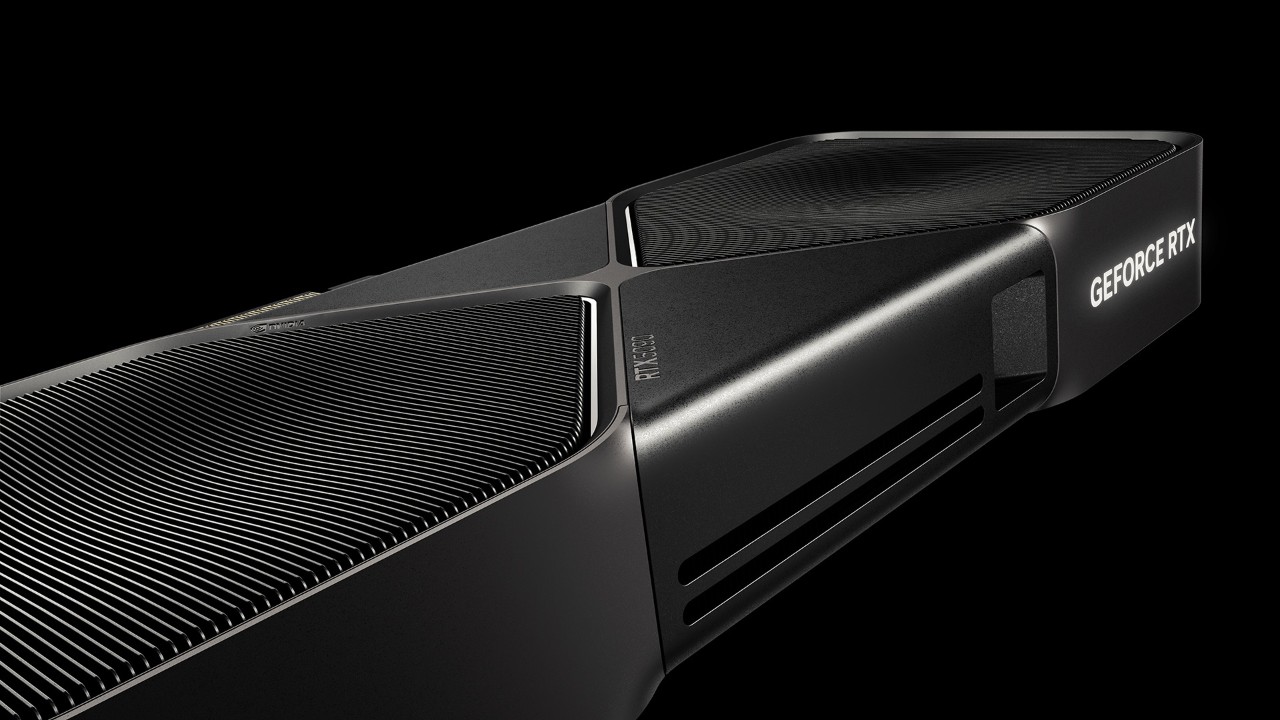
The RTX 5090’s 32GB GDDR7 is its standout specification for this guide. It also brings substantial system requirements: NVIDIA lists 575W graphics power and a 1000W system-PSU recommendation. The exact partner card can require a different power and cooling plan.
Buy it when: you have a specific high-end workload, a compatible system, and a budget that makes sense at the current selling price. Look for measurements of your simulator, headset, and settings. Buying the largest card is an expensive way to discover that your limitation was elsewhere.
Check GeForce RTX 5090 32GB prices on Amazon
Headset compatibility matters as much as the GPU tier
A graphics card can be powerful enough to render a game and still be the wrong purchase for a particular headset or connection. Verify the headset model, desktop software, operating system, ports, and game requirements together.
| Your setup | What the GPU needs to do | Check before spending |
|---|---|---|
| Standalone headset games | The headset runs its standalone software | A desktop GPU is only relevant when you add PC-rendered games |
| Quest 3 / Quest 3S PC VR through Horizon Link / Air Link | Render PC games and supply the app’s streaming path | Meta’s current GPU support list, software requirements, and connection setup |
| PS VR2 with a PC adapter | Render PC games and provide the required display connection | Sony’s dedicated DisplayPort requirements, adapter, USB and Bluetooth support |
| Steam Frame streaming from a PC | Render the PC game for a streaming-first headset | Valve’s current host requirements and the streaming connection |
| High-resolution DisplayPort PC headsets | Render at the selected resolution and refresh rate | The exact headset’s GPU, port, compression and driver requirements |
Quest 3 and Quest 3S: check the current Horizon Link list
Meta’s current PC requirements list RTX 50-series GPUs and the Radeon RX 9070 / RX 9070 XT as supported. Its page currently says Intel Arc and workstation cards are unsupported. That is a Horizon Link support statement, rather than a statement about every VR application. Check the current list again when buying.
For streamed PC VR, the GPU renders the game while the streaming software, encoding settings, cable or wireless connection also affect the result. A faster GPU will not automatically fix a connection problem. Codec support is specific to the headset and application; do not assume that an AV1-capable card means every app will use AV1.
PS VR2 on PC: inspect the actual display outputs
Sony requires DisplayPort 1.4 and a dedicated standard or Mini DisplayPort output for its PC-adapter setup. DisplayPort over USB-C is not compatible with that adapter. Sony’s troubleshooting page also rules out HDMI-to-DisplayPort and USB-C-to-DisplayPort conversion adapters. This matters especially when shopping for a laptop.
Choose the card and computer around the supported connection, then check Sony’s USB, Bluetooth, and software requirements. A port labelled USB-C is not a substitute for every headset’s native DisplayPort requirement.
Steam Frame and high-resolution headsets
Valve describes Steam Frame as a streaming-first wireless headset. For PC-rendered games, plan for the host PC and the streaming connection as a complete system. Follow the current device instructions instead of carrying assumptions over from an older wired headset.
For very high-resolution headsets, seek model-specific evidence. For example, Pimax publishes Crystal Super GPU and CPU test configurations. Those are manufacturer tests: compare the game, render resolution, settings, and processor before applying a result to your own build.
What makes VR performance different?
VR presents separate views to the two eyes and must respond to head movement within a tight timing budget. A headset can use one display panel or multiple panels; the important workload is the rendered views, resolution, refresh mode, and runtime processing. A conventional monitor benchmark is only part of the evidence you need.
Match frame times to the chosen refresh mode
There is no universal rule that every VR setup must run at exactly 90 FPS. Different headsets offer different refresh modes. The simple frame interval is 1,000 divided by refresh rate in milliseconds:
| Selected refresh rate | Time between refreshes |
|---|---|
| 72Hz | 13.89 ms |
| 80Hz | 12.50 ms |
| 90Hz | 11.11 ms |
| 120Hz | 8.33 ms |
| 144Hz | 6.94 ms |
These intervals are timing targets, not a GPU-performance promise. Runtime overhead and the game’s CPU and GPU work still matter. Look for consistent frame delivery, spikes, and reprojection behavior, rather than an average FPS number alone. SteamVR’s frame-timing documentation explains how its timing tools report this behavior.
How much VRAM do you need?
For a new build intended for demanding PC VR, 16GB is a useful shopping preference, rather than a universal minimum. High render resolutions, large textures, mods, and demanding scenes can increase memory pressure. A 12GB card can still be suitable when the workload fits; an 8GB card can run selected lighter experiences with appropriate settings.
Memory capacity does not tell you how quickly the GPU renders a frame. Compare the processing capability, memory behavior, and real VR results together. If you already own a capable card, measure the problem in your actual games before replacing it simply to reach a larger VRAM number.
DLSS, FSR, ray tracing, and frame generation
Treat each feature as game-specific. A title supporting an upscaler on a monitor does not automatically support it in its VR mode. Ray tracing concerns how a scene is rendered; it does not provide the headset’s motion tracking.
Also inspect how a performance chart was produced. For example, NVIDIA’s RTX 5070-family charts specify desktop-game settings with DLSS and frame-generation features. Those figures should not be read as native headset frame rates. VR runtimes have their own reprojection techniques, and synthesized display frames do not tell you the game’s native rendering rate.
Check the rest of the PC before buying
- Power and fit: compare the exact board’s PSU recommendation, connector requirements, length, thickness, and cable clearance with your case and power supply.
- Processor: inspect CPU frame times in demanding games. A graphics-card upgrade cannot eliminate every simulation or game-engine limitation.
- System memory and storage: follow the game and runtime requirements. As a practical planning range, consider 16–32GB of system RAM and SSD storage; demanding simulators or mods may call for more.
- Headset connection: verify the required DisplayPort, USB, wireless, and software path. Desktop and laptop GPUs with similar names can have different specifications and port routing.
- Actual retail model: compare cooling, warranty, outputs, return conditions, and the final checkout price. Specifications and support can vary between board partners.
For the complete build, use our gaming PC parts list and build-versus-buy guide. If you also stream your games, the streaming PC guide helps you plan the additional workload.
Try these checks before paying for an upgrade
- Use the runtime’s frame-timing tools to identify whether the CPU, GPU, or streaming path is struggling.
- Reduce render resolution or supersampling, then compare the same scene again. Change one setting at a time.
- Check texture use and VRAM pressure when stutters appear in complex scenes.
- For wireless PC VR, investigate the connection and streaming settings alongside GPU performance.
- Check the headset maker’s current software and driver guidance before changing versions.
VR graphics card FAQs
Do I need a gaming PC for a standalone VR headset?
Not to run its supported standalone games. A desktop GPU becomes relevant when you use a PC to render games and send the output to the headset. Keep the standalone store listing separate from the PC version’s requirements.
Is an old “VR-ready” GTX 970 still a good card to buy?
An old compatibility minimum is not a sensible default shopping target for a new 2026 build. A card may run legacy software while falling well short of the settings you want in newer games or a higher-resolution headset. If you already own one, judge the games you actually run; if buying, compare modern supported options.
Is NVIDIA or AMD better for VR?
There is no useful universal answer without specifying the game, headset, app, settings, and price. The RTX 5070 Ti and RX 9070 XT are the first pair we would compare for this guide’s new-build shortlist. Choose using current support information and relevant VR measurements, rather than assuming that every headset favors the same brand.
Should I buy 16GB instead of 12GB?
Prefer more memory when your target workload can use it and the complete card is good value. Do not trade away the performance you need simply to get a larger capacity label. Compare the actual GPU models, your intended settings, and the total upgrade cost.
Will a better GPU fix every VR stutter?
No. Processor limitations, game behavior, memory pressure, shader compilation, tracking, software, and the streaming connection can all affect the experience. Identify the cause with repeatable checks before choosing a replacement component.
Which card would we start with?
For a new build, begin by comparing the RTX 5070 Ti 16GB and RX 9070 XT 16GB against your headset’s requirements and actual prices. Consider the RTX 5080 for a more ambitious performance target. Use the RTX 5070 or 16GB RTX 5060 Ti when their compromises fit your budget, and reserve the RTX 5090 for a specific high-end need. More PC gaming coverage is available on PoGamer.
Specifications and compatibility sources
Specifications and support pages checked October 20, 2026. Source links below are editorial references. GPU roles and buying judgments are PoGamer’s; figures do not represent an in-house VR benchmark.
- NVIDIA: RTX 5070 Ti and RTX 5070 specifications
- NVIDIA: RTX 5080 specifications
- NVIDIA: RTX 5060-family specifications
- NVIDIA: RTX 5090 specifications
- AMD: RX 9070 XT specifications
- Meta: Horizon Link requirements and supported GPUs
- Sony: PS VR2 PC preparation and connections
- Valve: Steam Frame overview
- Pimax: Crystal Super GPU/CPU test configurations
- Valve Developer Community: SteamVR frame timing